How to import a GLTF file from Blender
Intro
Overview
We provide generic information to use GLTF models instead or in addition to the supported Assimp (Collada only, practically speaking) and s3o models. We don’t touch on the subjects of modeling, texturing, skinning or animation. Only the technicallities of Blender GLTF exporter and Recoil importer of GLTF.
Note
The guide is written in a prescriptive way. Try to not deviate from the guide too much, otherwise you may end up in the unsupported territory.
About GLTF 2.0
The engine has recently introduced support for the GLTF 2.0 model file format. It’s also widely supported throughout the industry.
Why use GLTF in Recoil?
- Widely supported unlike s3o
- Modern and in-trend unlike Collada
- Supports skinning, which Recoil supports. s3o will never have that.
- Supports the embedded animation (future support in Recoil). s3o will never have that either.
- Should load faster than Collada
- The supporting library is self-contained, unlike monstrous Assimp, which we can’t update due to sync concerns
GLTF support in Recoil
- The engine versions after this commit should have working experimental GLTF support (could still be bugged).
- The only supported primitive type is
Triangles.Points,Lines,LineLoops,LineStrips,TriangleStripsandTriangleFansare not supported. The last two might be added on demand (and for good reason). The unsupported primitives will cause runtime fatal error - Skinning is supposed to be supported, but was never tested after initial implementation
- Embedded animation is not supported, but maybe will be supported in the future versions of the engine
- Recoil ignores textures and materials, mostly because they’re expected to follow the PBR workflow
- Other vertex attributes, e.g. vertex colors, are not loaded, but can be considered for addition in the future versions of the engine
Note
We use S3O Kit to import existing s3o models from Blender. The s3o Kit imports many s3o attributes as separate nodes, you might want to remove them from the model, before exporting it to GLTF2, because they cause creation of extra meaningless pieces. Make sure the model hierarchy is clean of s3o attributes leftovers.
Export from Blender
Important things to know
Your model inside Blender SHOULD be positioned Z-up. Effects of other positioning are not explored, most likely it just won’t work.
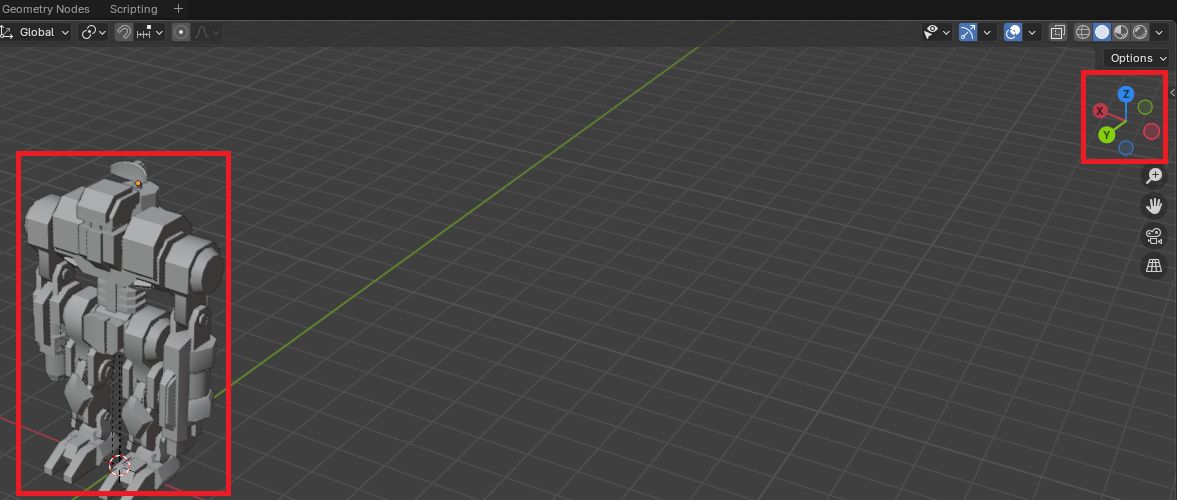
Before you export the model it might be convenient to define the Scene’s custom properties that are respected by the Recoil loader
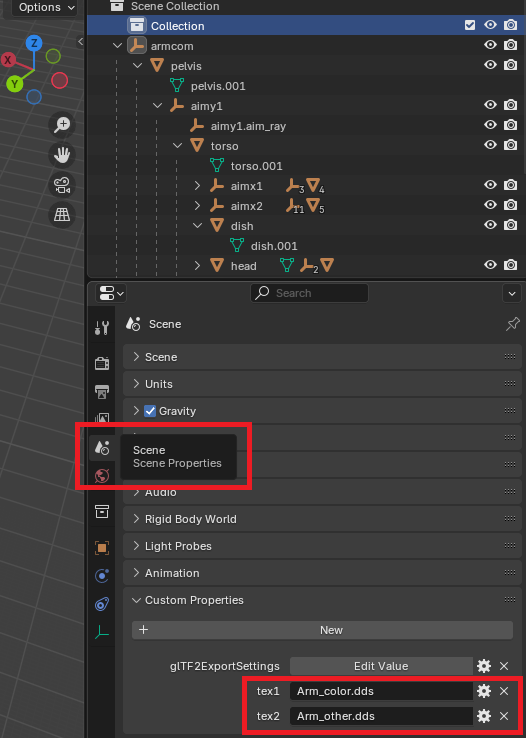
As the properties are custom, you will need to define them for each new model. If better ways are known, feel free to add this to the guide.
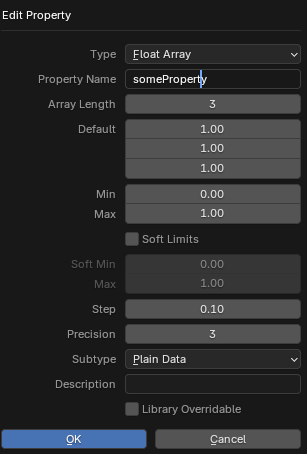
The list of supported key-values is following:
| Name | Type | Description |
|---|---|---|
tex1 | string | Relative path to tex1 in UnitTextures directory, empty by default |
tex2 | string | Relative path to tex2 in UnitTextures directory, empty by default |
midpos | float[3] | Relative middle of the model position, by default calculated based on the model dimensions |
mins | float[3] | Minimum bounds of the model, in the model space, by default calculated based on the model dimensions |
maxs | float[3] | Maximum bounds of the model, in the model space, by default calculated based on the model dimensions |
height | float | The height of the model, by default calculated based on the model dimensions |
radius | float | The radius of the model, by default calculated based on the model dimensions |
fliptextures | boolean | Whether to flip the supplied tex1 / tex2 (if supported by the texture types). False by default |
invertteamcolor | boolean | Whether to inverse the teamcolor in tex1 (if supported by the texture types). False by default |
s3ocompat | boolean | Select the source-facing convention used by models imported through the S3O Blender workflow. It changes model facing, but both modes load piece data and animation axes into the engine coordinate frame. False by default |
Note
You can export any additional attributes not listed above, there’s no harm in that
Alternatively all the same keys can be defined in a Lua file, right next to the model, the same as it’s done for Collada / .dae. Note that only the options above are supported for GLTF format. All the rest Assimp Lua keys and tables are ignored.
If both the custom Scene attributes in the GLTF file and the Lua file are present, the values in the Lua file will take precedence.
Export step list
- Go to File –> Export –> glTF 2.0.
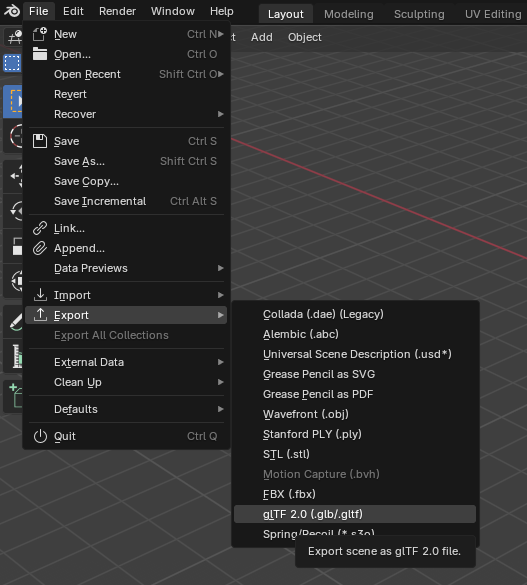
- Select
binary glTF format (.glb)as the file format. Make sure to includeCustom propertiesif you chose to define them..gltf(text) format is nice for debugging, the engine might load it, but it’s never been tested any thoroughly.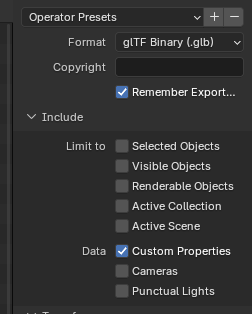
- You MUST make sure to unclick
+Y up.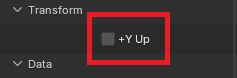
- Make sure to export
UVs,Normals,Tangents.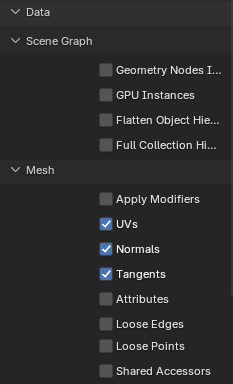
- The rest of the settings are listed on the screenshots below.
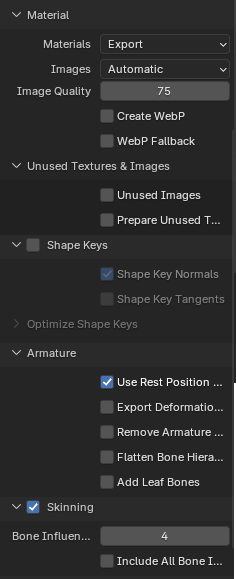
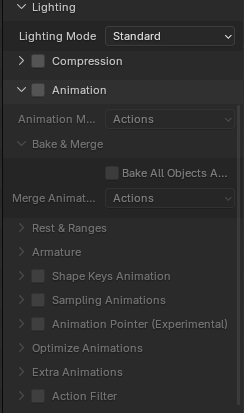
- Finally choose the folder and filename and press
Export glTF 2.0button.
Load the GLTF model in Recoil
Out of all custom attributes defined in the Scene’s GLTF or in the Lua file the two you should probably define in any case are tex1 and tex2. The rest are defined per use case.
In order to load the GLTF model, make sure it resides somewhere in Objects3d directory of your game. Next in the Unit / Feature / WeaponDef just reference the model’s relative file with .glb extension.
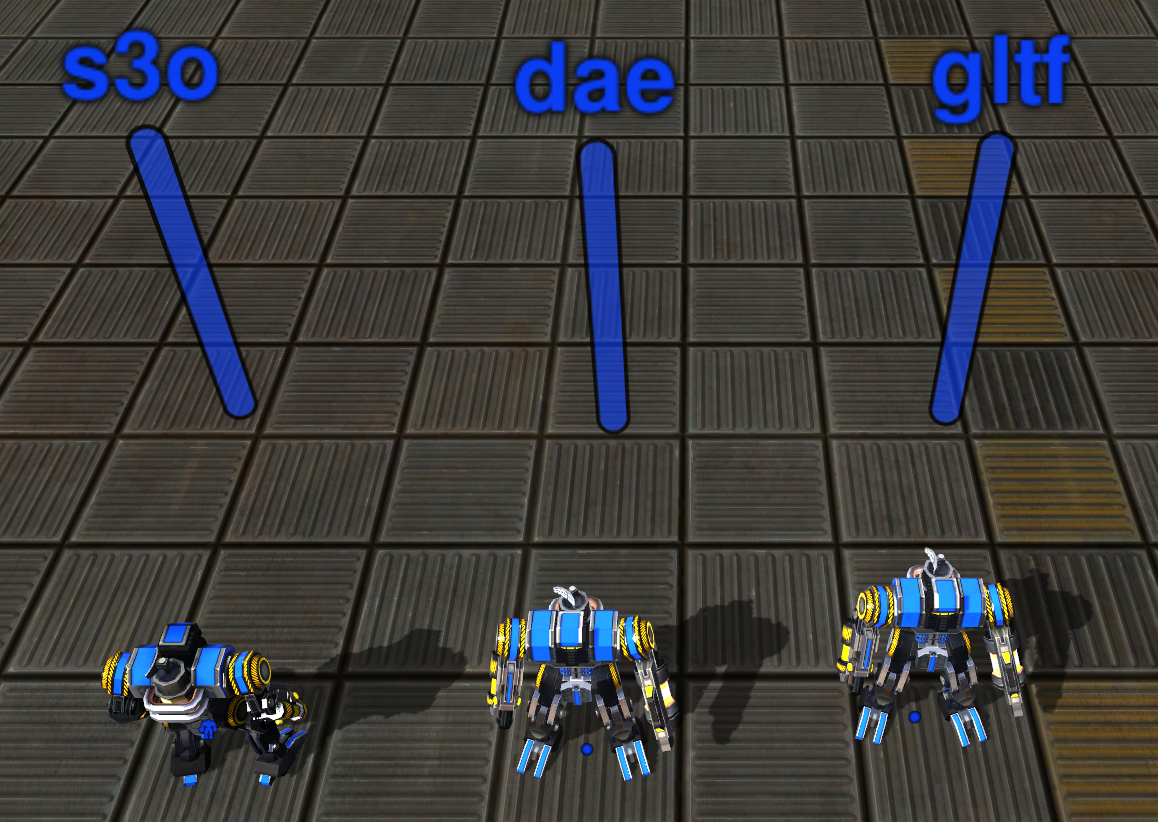
S3O Compat
If you import an existing S3O into Blender and export it as GLTF, define
s3ocompat as true. This selects the same source-facing conversion as the S3O
Blender tools: Blender (x, y, z) becomes engine (-x, z, y).
The default convention preserves the historical GLTF facing conversion
(x, z, -y). Both conventions are baked into vertices, piece offsets, node rest
rotations, normals, and tangents while the model loads. The resulting hierarchy is
always in the engine model coordinate frame.
BOS and LUS piece animation axes are therefore the same as for S3O. Do not remap
script axes based on whether the model uses .s3o, .gltf, or .glb, and do not
use BARScriptCompiler’s deprecated GLTF axis-remapping flags or macros.
midpos, mins, and maxs metadata values are interpreted directly in engine
model coordinates. They are not converted from Blender’s Z-up source frame.
Nodes hierarchy
The importer creates an empty scene piece above the exported node hierarchy. The piece has an identity transform; coordinate conversion is applied to the imported piece data rather than hidden in this ancestor. Additional empty nodes exported by Blender remain ordinary model pieces.